> ## Documentation Index
> Fetch the complete documentation index at: https://apidocs.mor.org/llms.txt
> Use this file to discover all available pages before exploring further.
# Cursor Integration
> How to integrate Morpheus Inference API with Cursor IDE
# How To Integrate with Cursor
### What is Cursor?
Cursor IDE is an AI-powered code editor designed to enhance developer productivity by enabling code generation from natural language, intelligent autocompletion, and context-aware refactoring. Its strength lies in AI-driven tools that understand coding context, automate repetitive tasks, optimize complex logic, and more. Cursor allows seasoned developers to focus on higher-level problem-solving while also assisting new developers learning to code. Cursor allows you to bring your own OpenAI API Compatible source of inference, and Morpheus can be integrated in just a few simple steps.
## Prerequisites
* Morpheus API Key
* Cursor Installed
* Morpheus Model Identified
## Step by Step
### Step 1: Download and Install Cursor
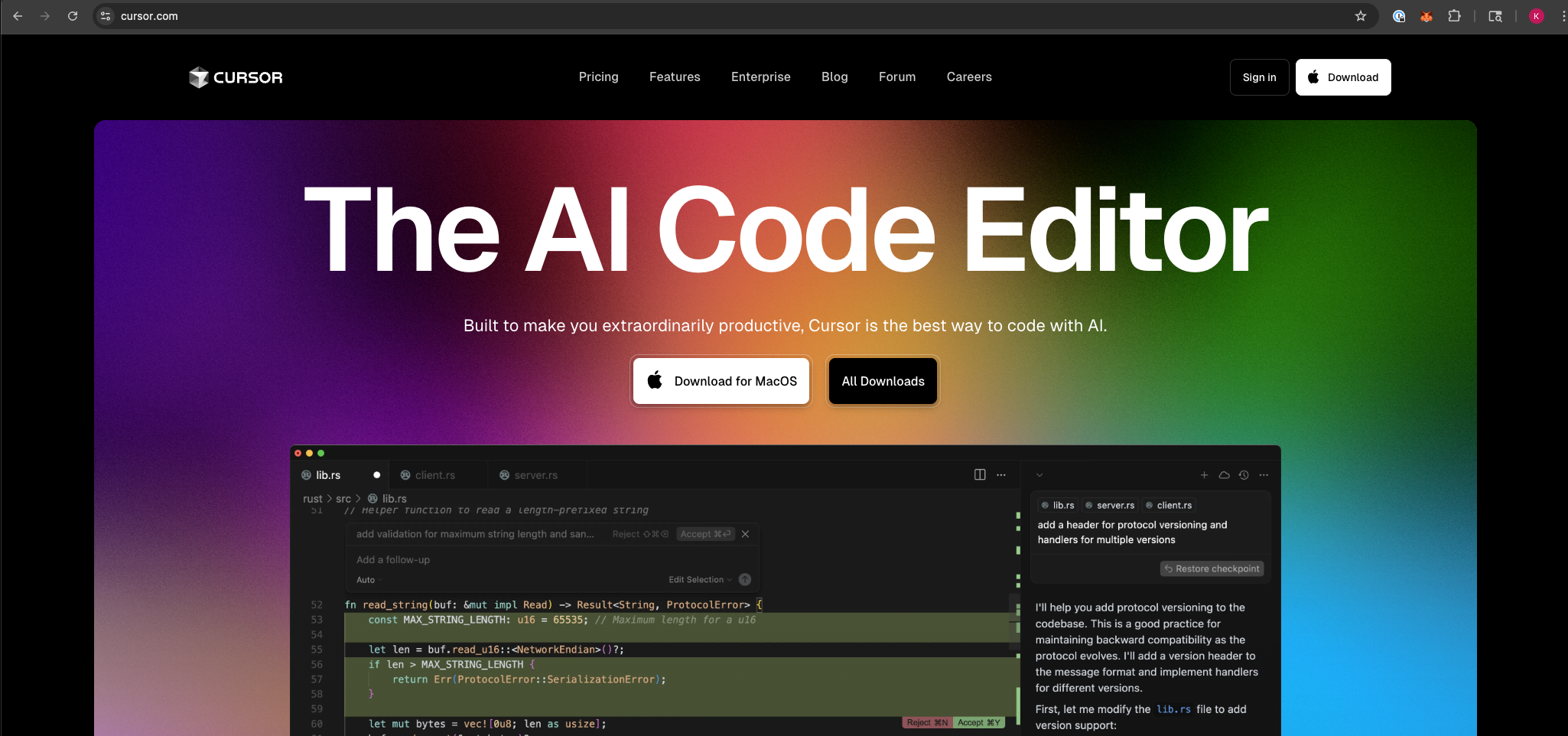
Download and Install Cursor through [Cursor.com](https://cursor.com)
 ### Step 2: Open Settings
Open Cursor and Click the gear icon on the top right for Settings
### Step 2: Open Settings
Open Cursor and Click the gear icon on the top right for Settings
 ### Step 3: Access Models Tab
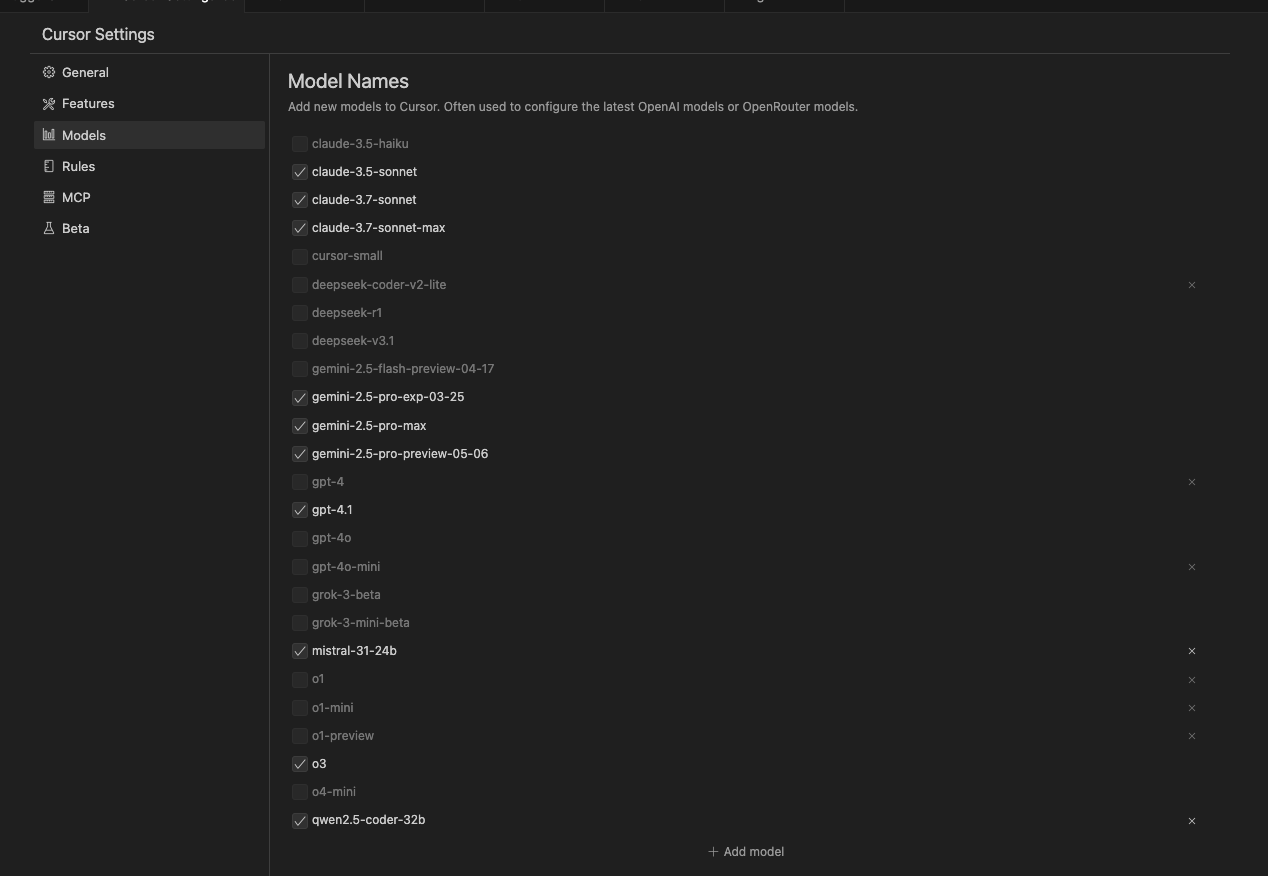
Click the "Models" Tab for AI Integrations
### Step 3: Access Models Tab
Click the "Models" Tab for AI Integrations
 ### Step 4: Add Your Model
Scroll down to the models and click the "+Add Model" button, then input the model name of the model you identified in the Morpheus Marketplace. Then click "+ Add Model". You will see it populate in the list above
### Step 4: Add Your Model
Scroll down to the models and click the "+Add Model" button, then input the model name of the model you identified in the Morpheus Marketplace. Then click "+ Add Model". You will see it populate in the list above
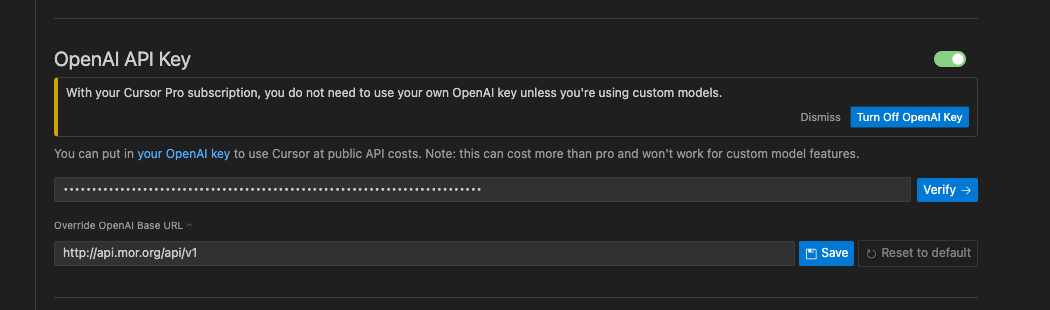
 ### Step 5: Configure OpenAI API Key
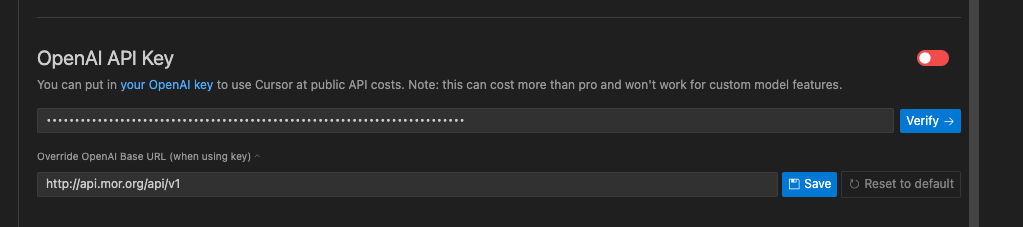
Go to the "OpenAI API Key" section and input the following:
* **OpenAI API Key:** Use your Morpheus API Key
* **Override OpenAI Base URL:** `https://api.mor.org/api/v1`
### Step 5: Configure OpenAI API Key
Go to the "OpenAI API Key" section and input the following:
* **OpenAI API Key:** Use your Morpheus API Key
* **Override OpenAI Base URL:** `https://api.mor.org/api/v1`
 ### Step 6: Verify and Enable
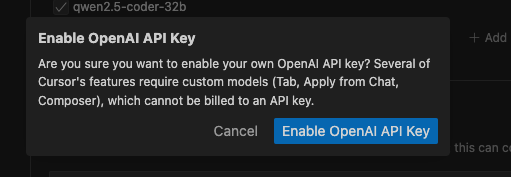
Click "Save" next to the base URL and then click "Verify" next to the API key. Once verified, click on the red radio button to enable the integration. Click "Enable OpenAI API Key" when prompted
### Step 6: Verify and Enable
Click "Save" next to the base URL and then click "Verify" next to the API key. Once verified, click on the red radio button to enable the integration. Click "Enable OpenAI API Key" when prompted
 ### Step 7: Success!
If successful, you will see the radio button turn from red to green indicating success.
### Step 7: Success!
If successful, you will see the radio button turn from red to green indicating success.
 You're now ready to use Morpheus AI within Cursor! Start coding with AI-powered assistance from the Morpheus Inference Marketplace.