> ## Documentation Index
> Fetch the complete documentation index at: https://apidocs.mor.org/llms.txt
> Use this file to discover all available pages before exploring further.
# Brave Leo Integration
> How to integrate Morpheus Inference API with Brave Leo
# How To Integrate with Brave Leo
### What is Brave Leo?
Brave Leo is an AI assistant built directly into the Brave browser that provides privacy-first AI capabilities. It allows you to bring your own model, making it easy to integrate with the Morpheus Inference API.
Reference: [How to use Brave Leo AI with Venice API](https://venice.ai/blog/how-to-use-brave-leo-ai-with-venice-api-a-privacy-first-browser-ai-assistant)
## Prerequisites
* Morpheus API Key
* Brave Installed (version >1.76.52)
* Morpheus Model Identified
## Step by Step
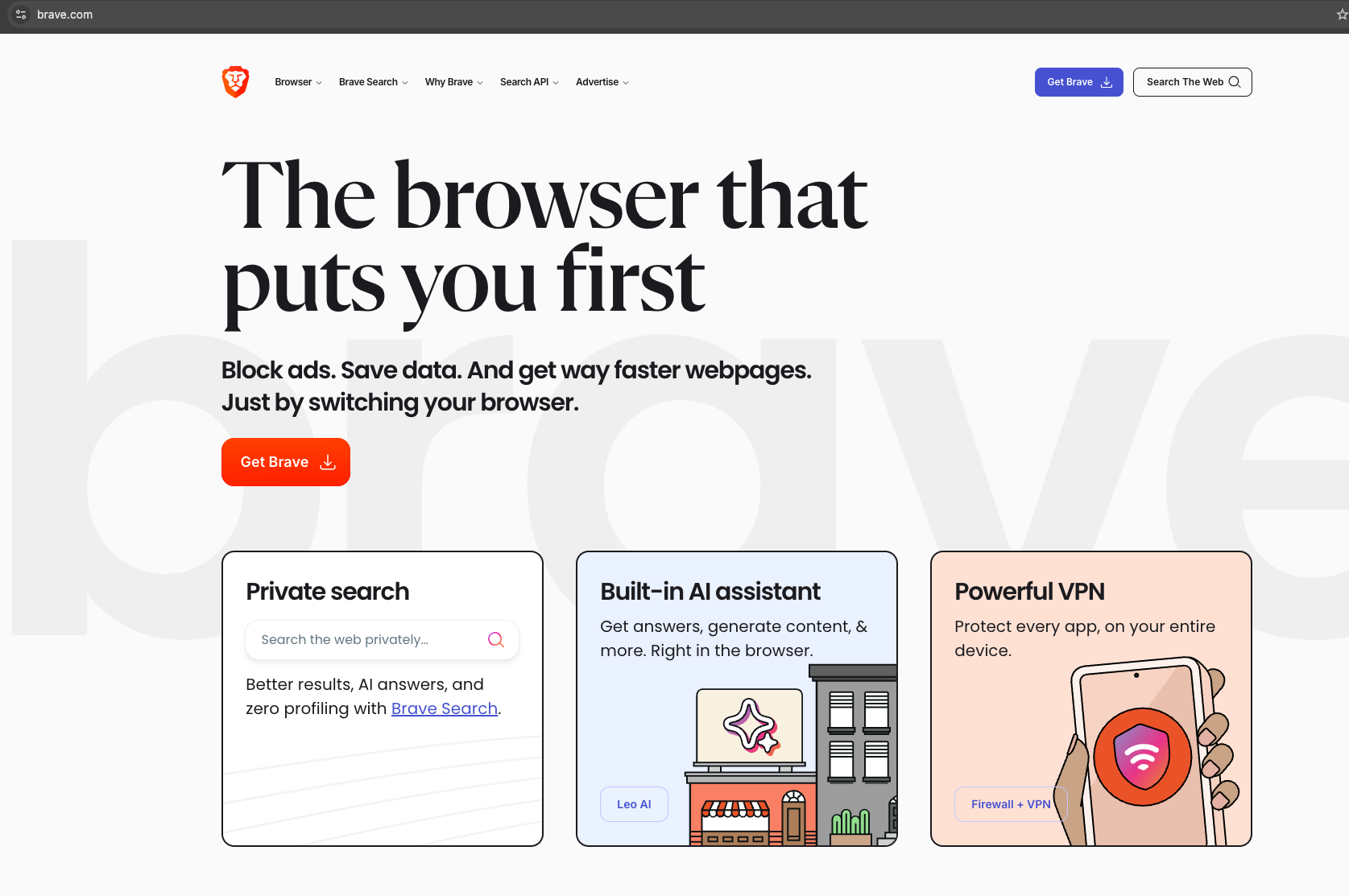
### Step 1: Download and Install Brave
Download and Install the Brave browser (version >1.76.52) through [brave.com](https://brave.com)
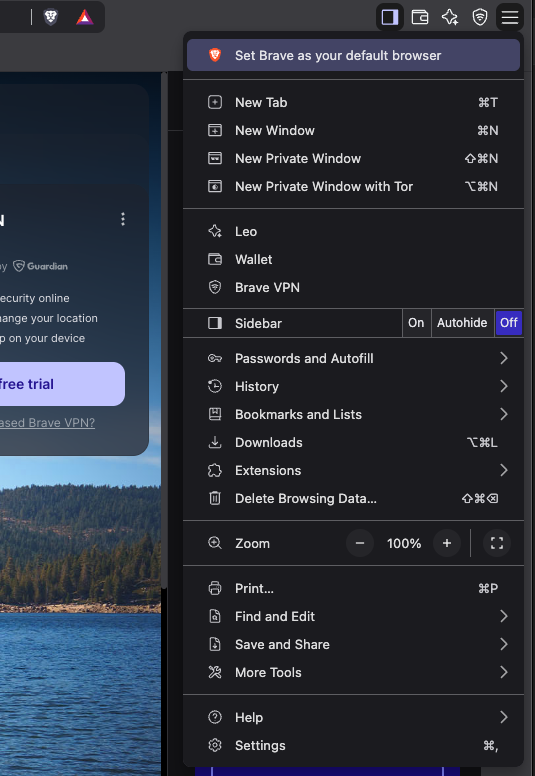
 ### Step 2: Open Settings
Open Brave browser and Click the hamburger icon on the top right and then settings
### Step 2: Open Settings
Open Brave browser and Click the hamburger icon on the top right and then settings
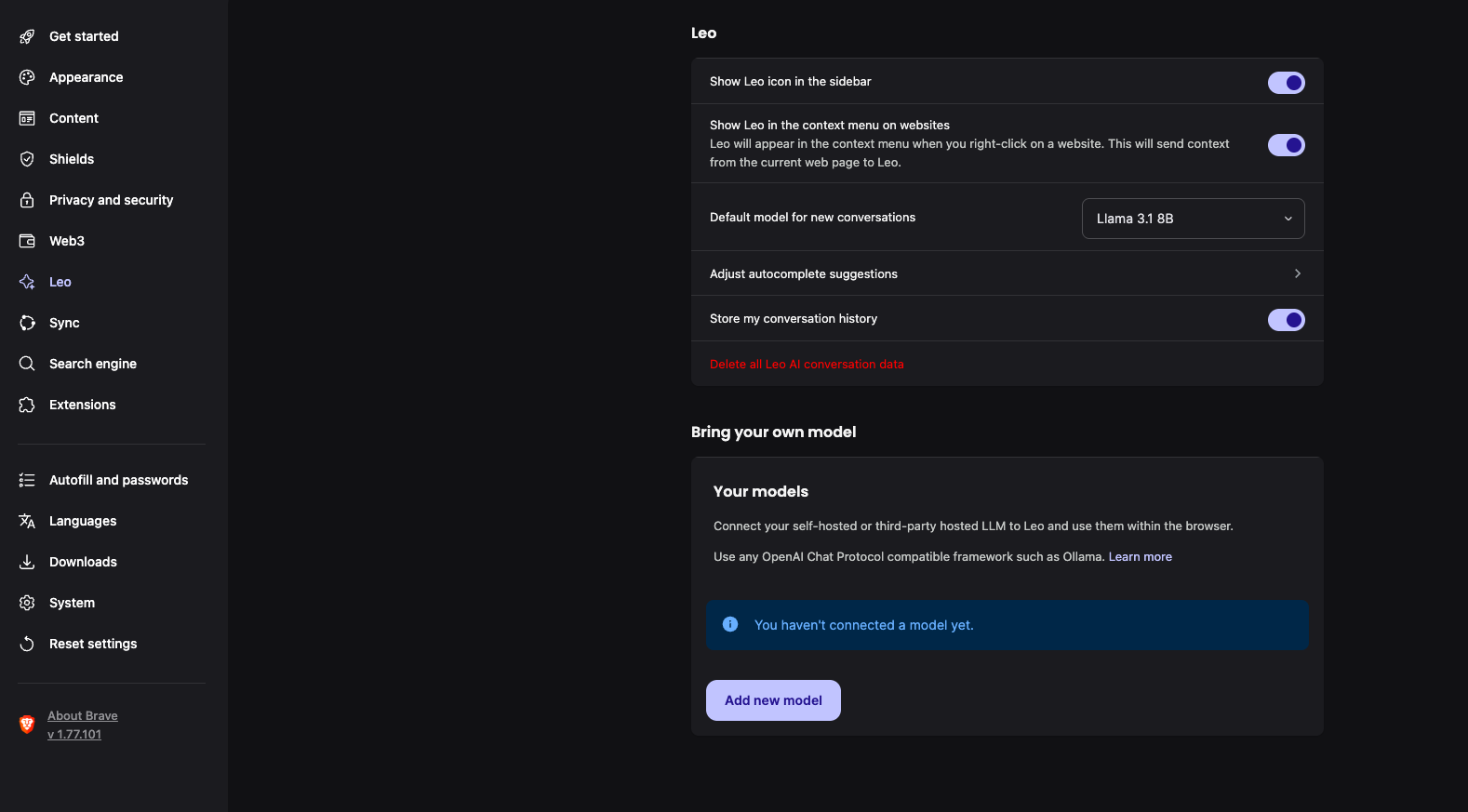
 ### Step 3: Access Leo Settings
On the lefthand side click "Leo", and then go to the "Bring your own model" section
### Step 3: Access Leo Settings
On the lefthand side click "Leo", and then go to the "Bring your own model" section
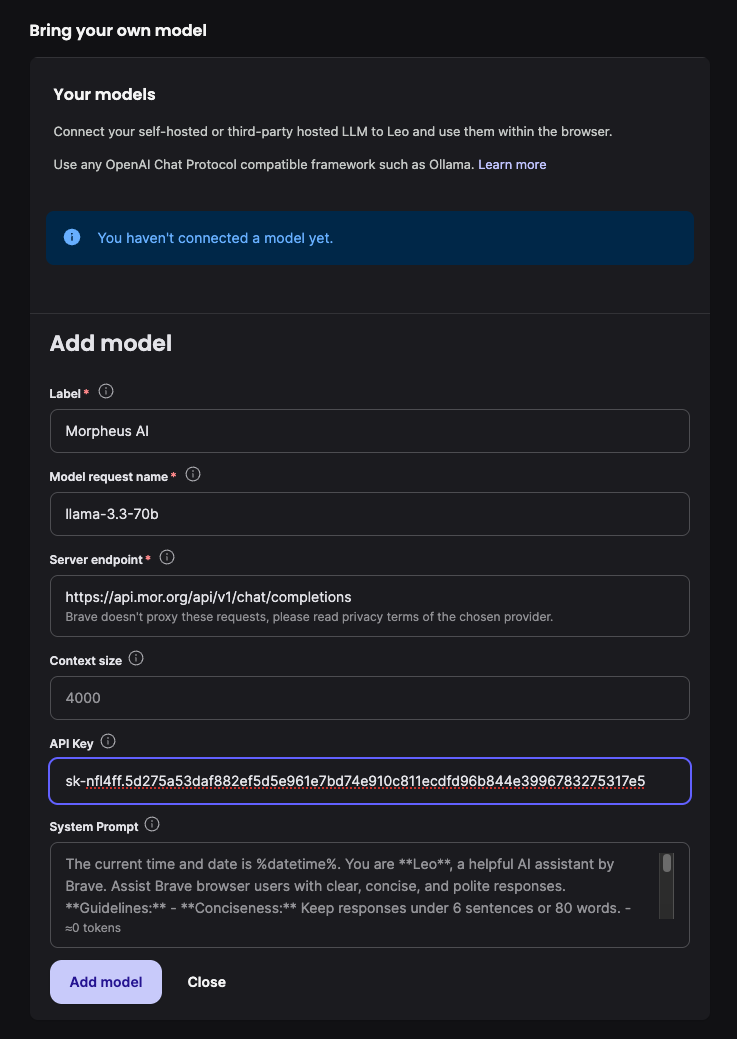
 ### Step 4: Configure Your Model
Click "Add new model" and start configuring the model:
* **Label:** MorpheusAI
* **Model request name:** Choose model from Morpheus Marketplace
* **Server endpoint:** `https://api.mor.org/api/v1/chat/completions`
* **Context size:** Customize or leave as 4000
* **API Key:** Morpheus API Key
* **System Prompt:** Customize or leave as default
### Step 4: Configure Your Model
Click "Add new model" and start configuring the model:
* **Label:** MorpheusAI
* **Model request name:** Choose model from Morpheus Marketplace
* **Server endpoint:** `https://api.mor.org/api/v1/chat/completions`
* **Context size:** Customize or leave as 4000
* **API Key:** Morpheus API Key
* **System Prompt:** Customize or leave as default
 ### Step 5: Add the Model
Click add model at the bottom of the screen and go back to the "Bring your own model" section
### Step 5: Add the Model
Click add model at the bottom of the screen and go back to the "Bring your own model" section
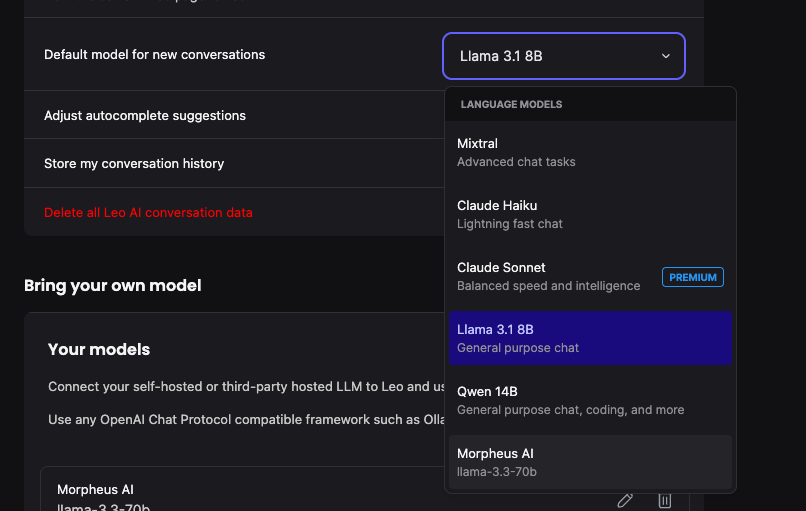
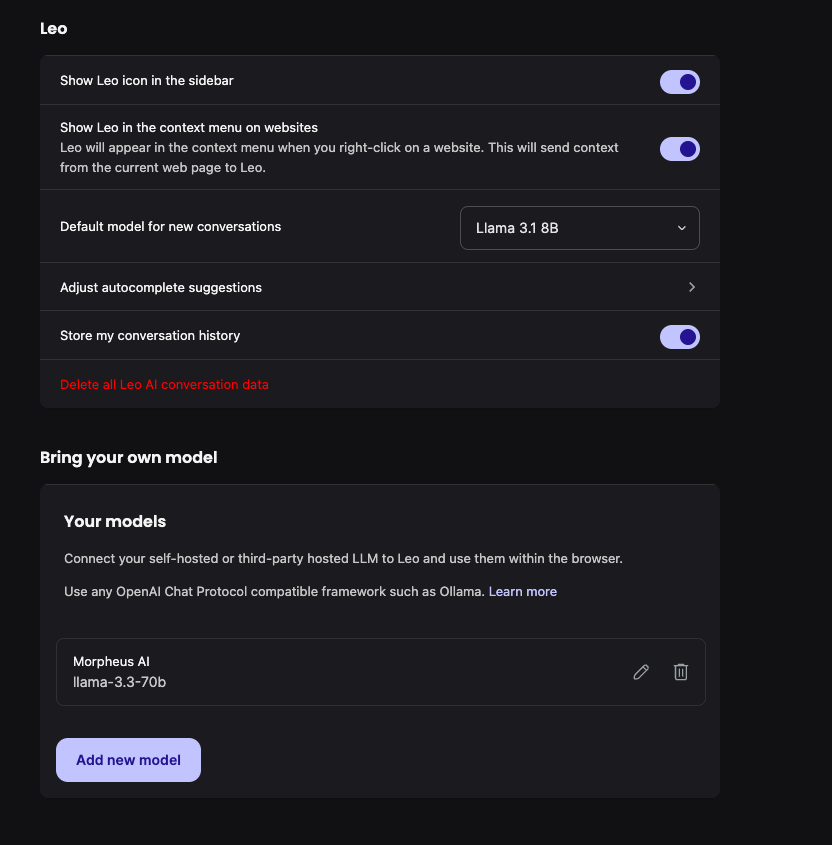 ### Step 6: Set as Default
Find the "Default model for new conversations" box, and change it to MorpheusAI.
### Step 6: Set as Default
Find the "Default model for new conversations" box, and change it to MorpheusAI.
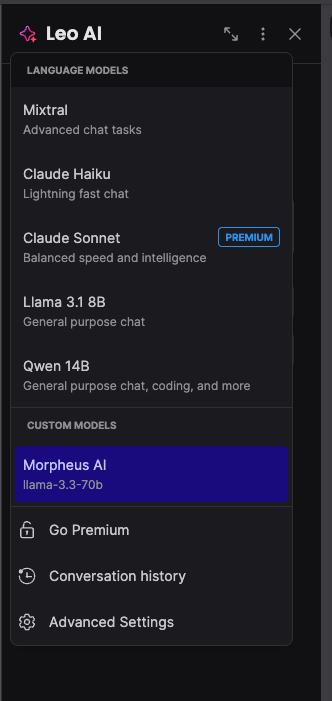
 ### Step 7: Select in Leo Assistant
Go back to the main Leo Assistant page and click the 3 dots next to the "X" on the top bar, and select the MorpheusAI model if not already selected
### Step 7: Select in Leo Assistant
Go back to the main Leo Assistant page and click the 3 dots next to the "X" on the top bar, and select the MorpheusAI model if not already selected
 ### Step 8: Start Using!
Go to a website and enter your prompt to use Brave Leo with Morpheus AI
### Step 8: Start Using!
Go to a website and enter your prompt to use Brave Leo with Morpheus AI
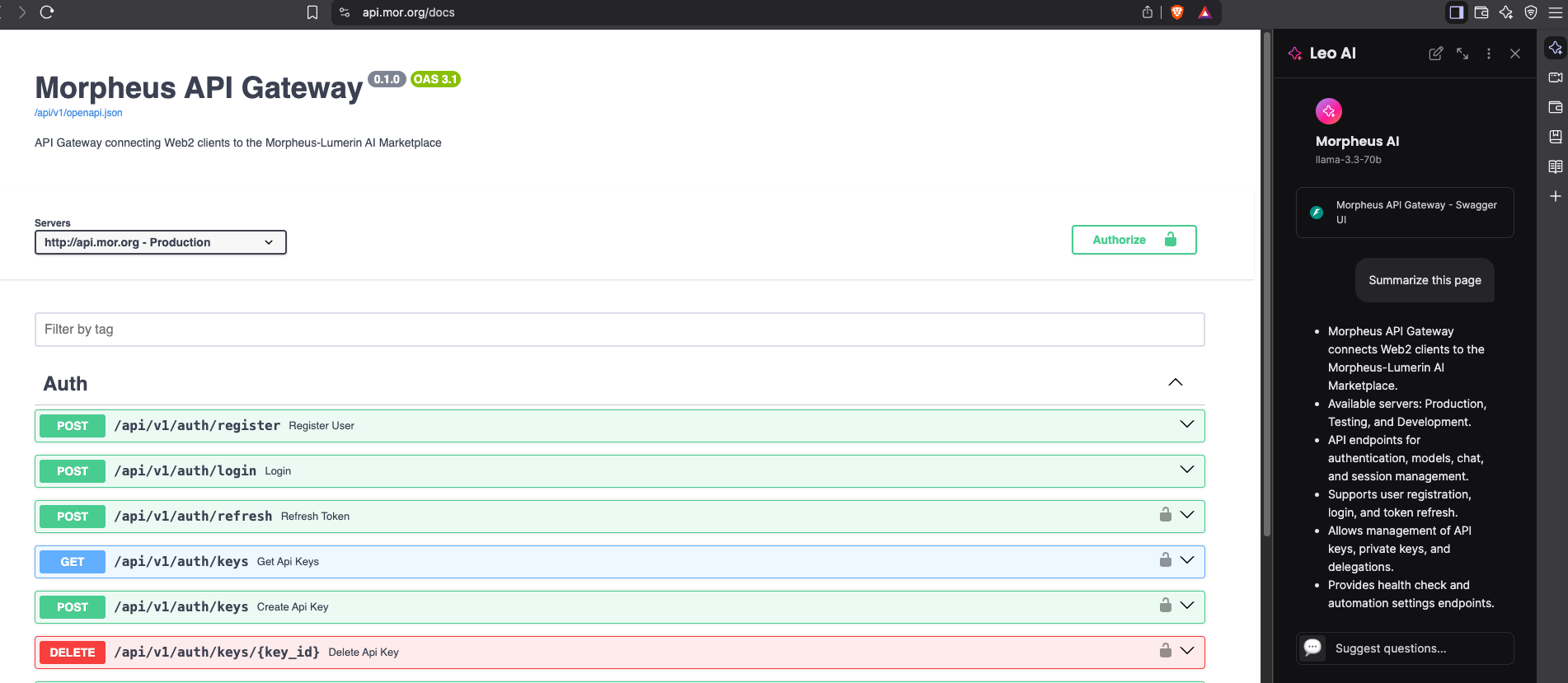 You're now ready to use Morpheus AI within Brave Leo! Enjoy privacy-first AI assistance powered by the Morpheus Inference Marketplace.