> ## Documentation Index
> Fetch the complete documentation index at: https://apidocs.mor.org/llms.txt
> Use this file to discover all available pages before exploring further.
# Viewing Models
> How to view available models in the Morpheus Inference Marketplace
# How to View Models
The purpose of this document is to provide instructions for how to view the available active models within the Morpheus Inference Marketplace via the "API Reference Page".
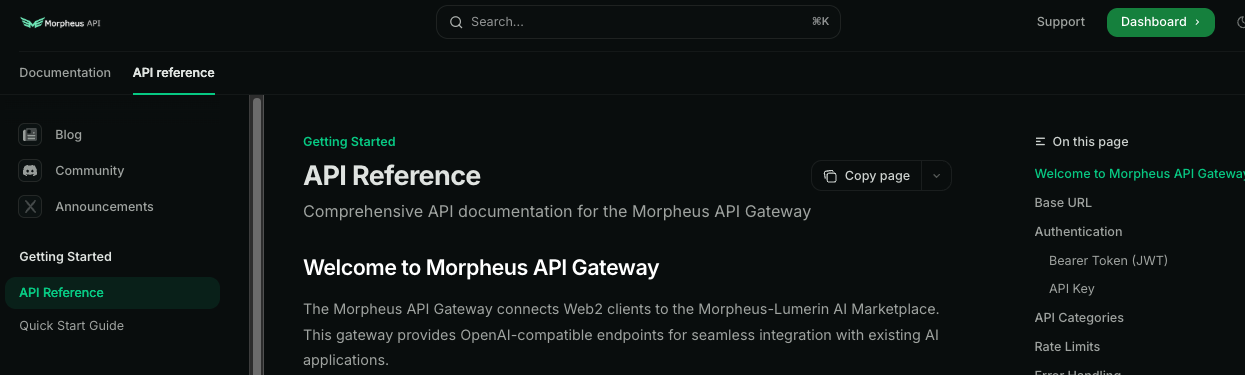
## Step 1: API Reference Page
First go to API Reference tab of the website [apidocs.mor.org/api-reference/introduction](https://apidocs.mor.org/api-reference/introduction)
## Step 2: View Available Models
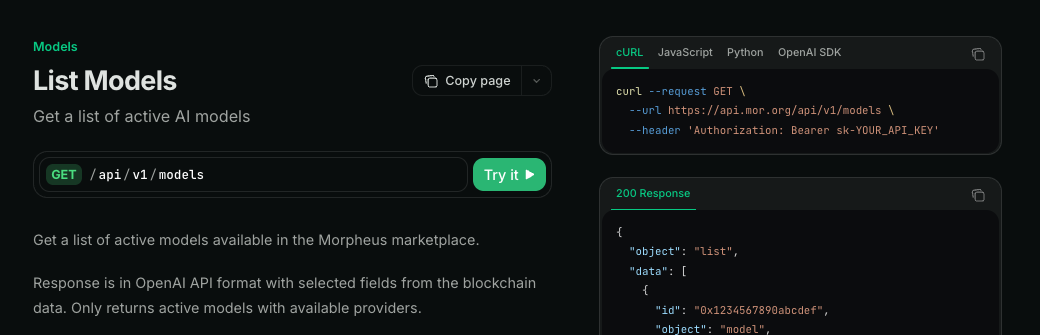
Head down to the Models section on the lefthand toolbar and click [List Models](https://apidocs.mor.org/api-reference/models/list). This is how you view the models that are currently available and active within the API. This endpoint uses automated functionality to identify models with active "bids" from providers, signifying that they are actively available for use.
## Step 3: Execute Model List
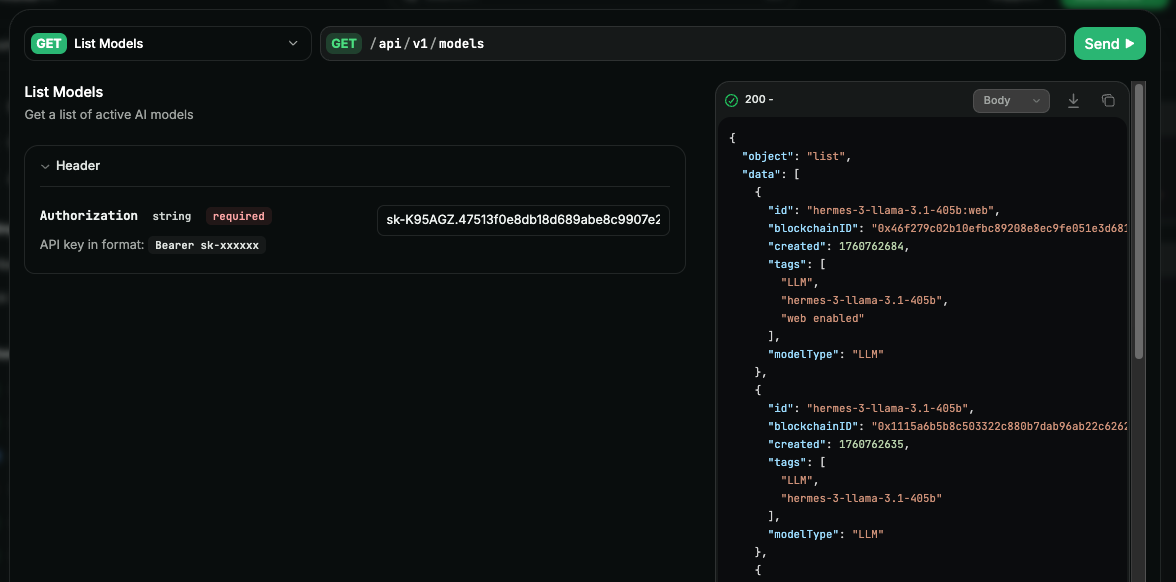
Now you can click the "Try it" button and actually execute the endpoint to see the available models. Enter your API Key and click "Send" to execute the call
This creates a curl request to the models endpoint, and sends it
```bash theme={null}
curl -X 'GET' \
'https://api.mor.org/api/v1/models' \
-H 'accept: application/json' \
-H 'Authorization: sk-K95AGZ.47513f0e8db18d689abe8c9907e2d8ae4d43d686a6132d085aac0deaabaaa392' \
-H 'Content-Type: application/json'
```
Your response will be similar to this:
```json theme={null}
{
"object": "list",
"data": [
{
"id": "llama-3.3-70b",
"blockchainID": "0xa86a6e2f23ccc9be0d2756f471e2319598c07af3c6082a3fff5cfa3b6dda56de",
"created": 1757993282,
"tags": [
"LLM",
"llama-3.3-70b"
],
"modelType": "LLM"
},
{
"id": "qwen3-coder-480b-a35b-instruct",
"blockchainID": "0xce43b9525aeb56c2cd1b6c0d981b1614c6edd3cffe06edd4b3d2503fd025772d",
"created": 1760762538,
"tags": [
"LLM",
"qwen3-coder-480b-a35b-instruct"
],
"modelType": "LLM"
},
]
}
```
## Step 4: View All Models (Including Historical)
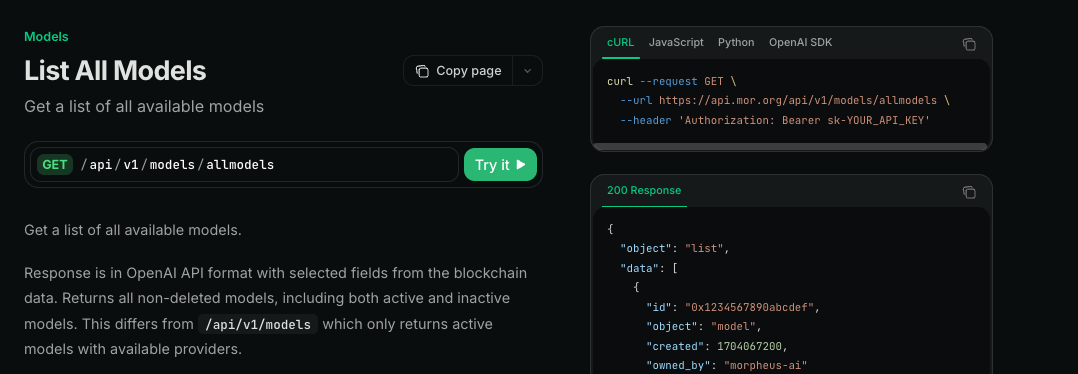
There is also an "allmodels" endpoint for purposes of identifying models no longer being hosted, or for historical purposes. That can be found at [All Models](https://apidocs.mor.org/api-reference/models/all-models). You can similarly use the playground to execute this by clicking "Try Now"
## Understanding the Response
Notice that the models response contains a few pieces of information:
* **ID:** This is the "name" of the model. This can be used directly within the chat/completions endpoint in the "model" section
* **blockchainID:** This is the blockchain ID for the model within the Morpheus Inference Marketplace. This can safely be ignored for the time being for API users.
* **Tags:** These tags are input by providers to help identify key use cases or specific attributes of the model
## Using Models in Chat Completions
When calling a chat/completion request, you can simply use the ID (name) or the blockchain ID, as follows:
```bash theme={null}
curl -X 'POST' \
'https://api.mor.org/api/v1/chat/completions' \
-H 'accept: application/json' \
-H 'Authorization: sk-K95AGZ.47513f0e8db18d689abe8c9907e2d8ae4d43d686a6132d085aac0deaabaaa392' \
-H 'Content-Type: application/json' \
-d '{
"model": "llama-3.3-70b",
"messages": [
{
"role": "system",
"content": "You are a helpful assistant."
},
{
"role": "user",
"content": "Hello, how are you?"
}
],
"stream": false
}'
```
Your response will be similar to this:
```json theme={null}
{
"id": "chatcmpl-ee90c8c567f07a6426e6373125078f70",
"object": "chat.completion",
"created": 1747695418,
"model": "llama-3.3-70b",
"choices": [
{
"index": 0,
"message": {
"role": "assistant",
"content": "Hello! I'm functioning as intended, thank you. How can I assist you today?"
},
"finish_reason": "stop"
}
],
"usage": {
"prompt_tokens": 498,
"completion_tokens": 19,
"total_tokens": 517
},
"system_fingerprint": ""
}
```
## Ready to Use!
Now you can begin using the Morpheus Inference Marketplace! For integrations, use the following information:
**Base URL:** [https://api.mor.org/api/v1](https://api.mor.org/api/v1)
**API Key:** \[Your API key]
 ## Step 2: View Available Models
Head down to the Models section on the lefthand toolbar and click [List Models](https://apidocs.mor.org/api-reference/models/list). This is how you view the models that are currently available and active within the API. This endpoint uses automated functionality to identify models with active "bids" from providers, signifying that they are actively available for use.
## Step 2: View Available Models
Head down to the Models section on the lefthand toolbar and click [List Models](https://apidocs.mor.org/api-reference/models/list). This is how you view the models that are currently available and active within the API. This endpoint uses automated functionality to identify models with active "bids" from providers, signifying that they are actively available for use.
 ## Step 3: Execute Model List
Now you can click the "Try it" button and actually execute the endpoint to see the available models. Enter your API Key and click "Send" to execute the call
## Step 3: Execute Model List
Now you can click the "Try it" button and actually execute the endpoint to see the available models. Enter your API Key and click "Send" to execute the call
 This creates a curl request to the models endpoint, and sends it
```bash theme={null}
curl -X 'GET' \
'https://api.mor.org/api/v1/models' \
-H 'accept: application/json' \
-H 'Authorization: sk-K95AGZ.47513f0e8db18d689abe8c9907e2d8ae4d43d686a6132d085aac0deaabaaa392' \
-H 'Content-Type: application/json'
```
Your response will be similar to this:
```json theme={null}
{
"object": "list",
"data": [
{
"id": "llama-3.3-70b",
"blockchainID": "0xa86a6e2f23ccc9be0d2756f471e2319598c07af3c6082a3fff5cfa3b6dda56de",
"created": 1757993282,
"tags": [
"LLM",
"llama-3.3-70b"
],
"modelType": "LLM"
},
{
"id": "qwen3-coder-480b-a35b-instruct",
"blockchainID": "0xce43b9525aeb56c2cd1b6c0d981b1614c6edd3cffe06edd4b3d2503fd025772d",
"created": 1760762538,
"tags": [
"LLM",
"qwen3-coder-480b-a35b-instruct"
],
"modelType": "LLM"
},
]
}
```
## Step 4: View All Models (Including Historical)
There is also an "allmodels" endpoint for purposes of identifying models no longer being hosted, or for historical purposes. That can be found at [All Models](https://apidocs.mor.org/api-reference/models/all-models). You can similarly use the playground to execute this by clicking "Try Now"
This creates a curl request to the models endpoint, and sends it
```bash theme={null}
curl -X 'GET' \
'https://api.mor.org/api/v1/models' \
-H 'accept: application/json' \
-H 'Authorization: sk-K95AGZ.47513f0e8db18d689abe8c9907e2d8ae4d43d686a6132d085aac0deaabaaa392' \
-H 'Content-Type: application/json'
```
Your response will be similar to this:
```json theme={null}
{
"object": "list",
"data": [
{
"id": "llama-3.3-70b",
"blockchainID": "0xa86a6e2f23ccc9be0d2756f471e2319598c07af3c6082a3fff5cfa3b6dda56de",
"created": 1757993282,
"tags": [
"LLM",
"llama-3.3-70b"
],
"modelType": "LLM"
},
{
"id": "qwen3-coder-480b-a35b-instruct",
"blockchainID": "0xce43b9525aeb56c2cd1b6c0d981b1614c6edd3cffe06edd4b3d2503fd025772d",
"created": 1760762538,
"tags": [
"LLM",
"qwen3-coder-480b-a35b-instruct"
],
"modelType": "LLM"
},
]
}
```
## Step 4: View All Models (Including Historical)
There is also an "allmodels" endpoint for purposes of identifying models no longer being hosted, or for historical purposes. That can be found at [All Models](https://apidocs.mor.org/api-reference/models/all-models). You can similarly use the playground to execute this by clicking "Try Now"
 ## Understanding the Response
Notice that the models response contains a few pieces of information:
* **ID:** This is the "name" of the model. This can be used directly within the chat/completions endpoint in the "model" section
* **blockchainID:** This is the blockchain ID for the model within the Morpheus Inference Marketplace. This can safely be ignored for the time being for API users.
* **Tags:** These tags are input by providers to help identify key use cases or specific attributes of the model
## Using Models in Chat Completions
When calling a chat/completion request, you can simply use the ID (name) or the blockchain ID, as follows:
```bash theme={null}
curl -X 'POST' \
'https://api.mor.org/api/v1/chat/completions' \
-H 'accept: application/json' \
-H 'Authorization: sk-K95AGZ.47513f0e8db18d689abe8c9907e2d8ae4d43d686a6132d085aac0deaabaaa392' \
-H 'Content-Type: application/json' \
-d '{
"model": "llama-3.3-70b",
"messages": [
{
"role": "system",
"content": "You are a helpful assistant."
},
{
"role": "user",
"content": "Hello, how are you?"
}
],
"stream": false
}'
```
Your response will be similar to this:
```json theme={null}
{
"id": "chatcmpl-ee90c8c567f07a6426e6373125078f70",
"object": "chat.completion",
"created": 1747695418,
"model": "llama-3.3-70b",
"choices": [
{
"index": 0,
"message": {
"role": "assistant",
"content": "Hello! I'm functioning as intended, thank you. How can I assist you today?"
},
"finish_reason": "stop"
}
],
"usage": {
"prompt_tokens": 498,
"completion_tokens": 19,
"total_tokens": 517
},
"system_fingerprint": ""
}
```
## Ready to Use!
Now you can begin using the Morpheus Inference Marketplace! For integrations, use the following information:
## Understanding the Response
Notice that the models response contains a few pieces of information:
* **ID:** This is the "name" of the model. This can be used directly within the chat/completions endpoint in the "model" section
* **blockchainID:** This is the blockchain ID for the model within the Morpheus Inference Marketplace. This can safely be ignored for the time being for API users.
* **Tags:** These tags are input by providers to help identify key use cases or specific attributes of the model
## Using Models in Chat Completions
When calling a chat/completion request, you can simply use the ID (name) or the blockchain ID, as follows:
```bash theme={null}
curl -X 'POST' \
'https://api.mor.org/api/v1/chat/completions' \
-H 'accept: application/json' \
-H 'Authorization: sk-K95AGZ.47513f0e8db18d689abe8c9907e2d8ae4d43d686a6132d085aac0deaabaaa392' \
-H 'Content-Type: application/json' \
-d '{
"model": "llama-3.3-70b",
"messages": [
{
"role": "system",
"content": "You are a helpful assistant."
},
{
"role": "user",
"content": "Hello, how are you?"
}
],
"stream": false
}'
```
Your response will be similar to this:
```json theme={null}
{
"id": "chatcmpl-ee90c8c567f07a6426e6373125078f70",
"object": "chat.completion",
"created": 1747695418,
"model": "llama-3.3-70b",
"choices": [
{
"index": 0,
"message": {
"role": "assistant",
"content": "Hello! I'm functioning as intended, thank you. How can I assist you today?"
},
"finish_reason": "stop"
}
],
"usage": {
"prompt_tokens": 498,
"completion_tokens": 19,
"total_tokens": 517
},
"system_fingerprint": ""
}
```
## Ready to Use!
Now you can begin using the Morpheus Inference Marketplace! For integrations, use the following information: