> ## Documentation Index
> Fetch the complete documentation index at: https://apidocs.mor.org/llms.txt
> Use this file to discover all available pages before exploring further.
# Setting Up Your Account
> Create your Morpheus account and get your API key
# Setting Up Your Account
Before you can use the Morpheus Inference API, you need to create an account and generate an API key. This takes about 2 minutes.
**Portal URL:** [app.mor.org](https://app.mor.org)
***
## Step 1: Go to the Portal
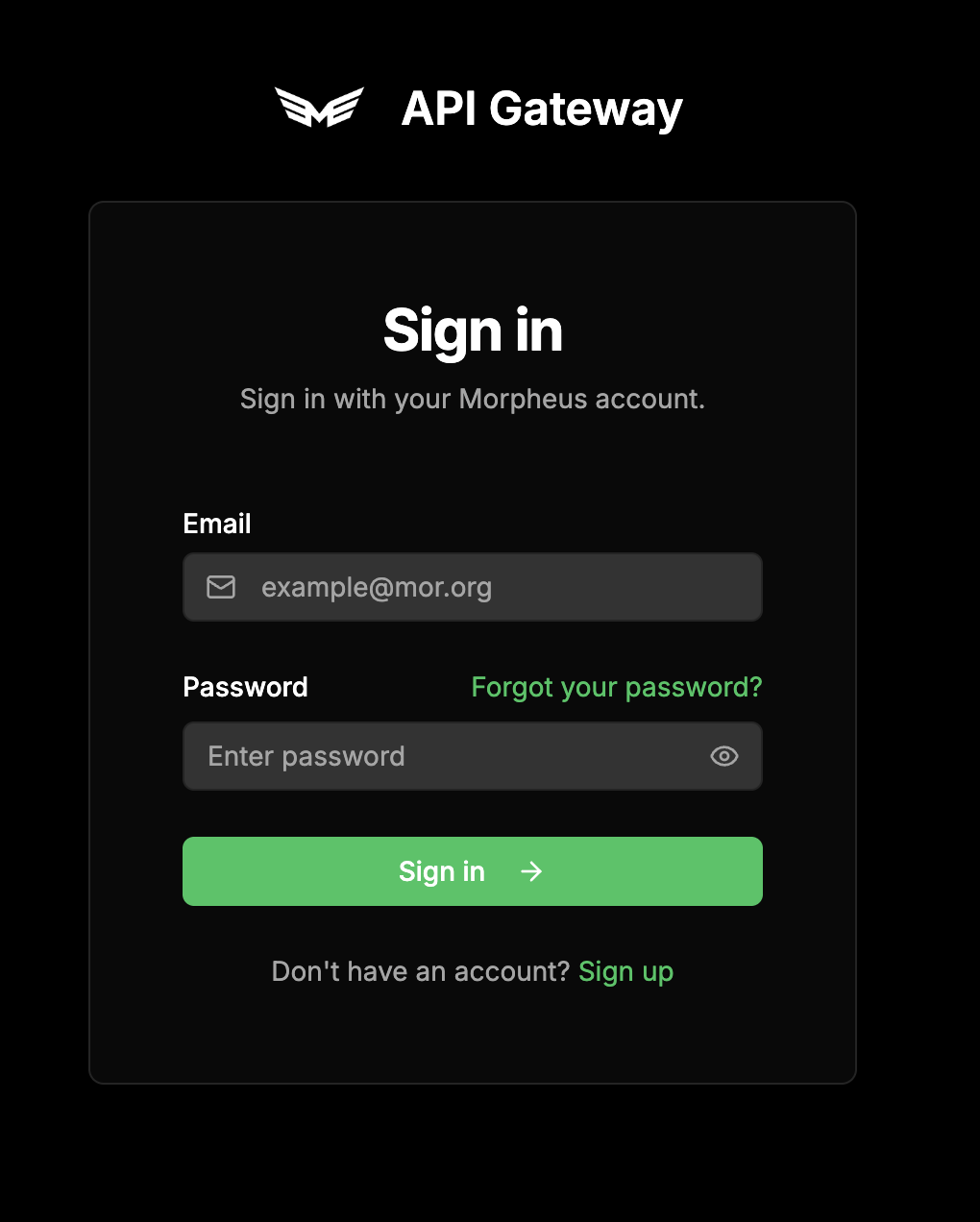
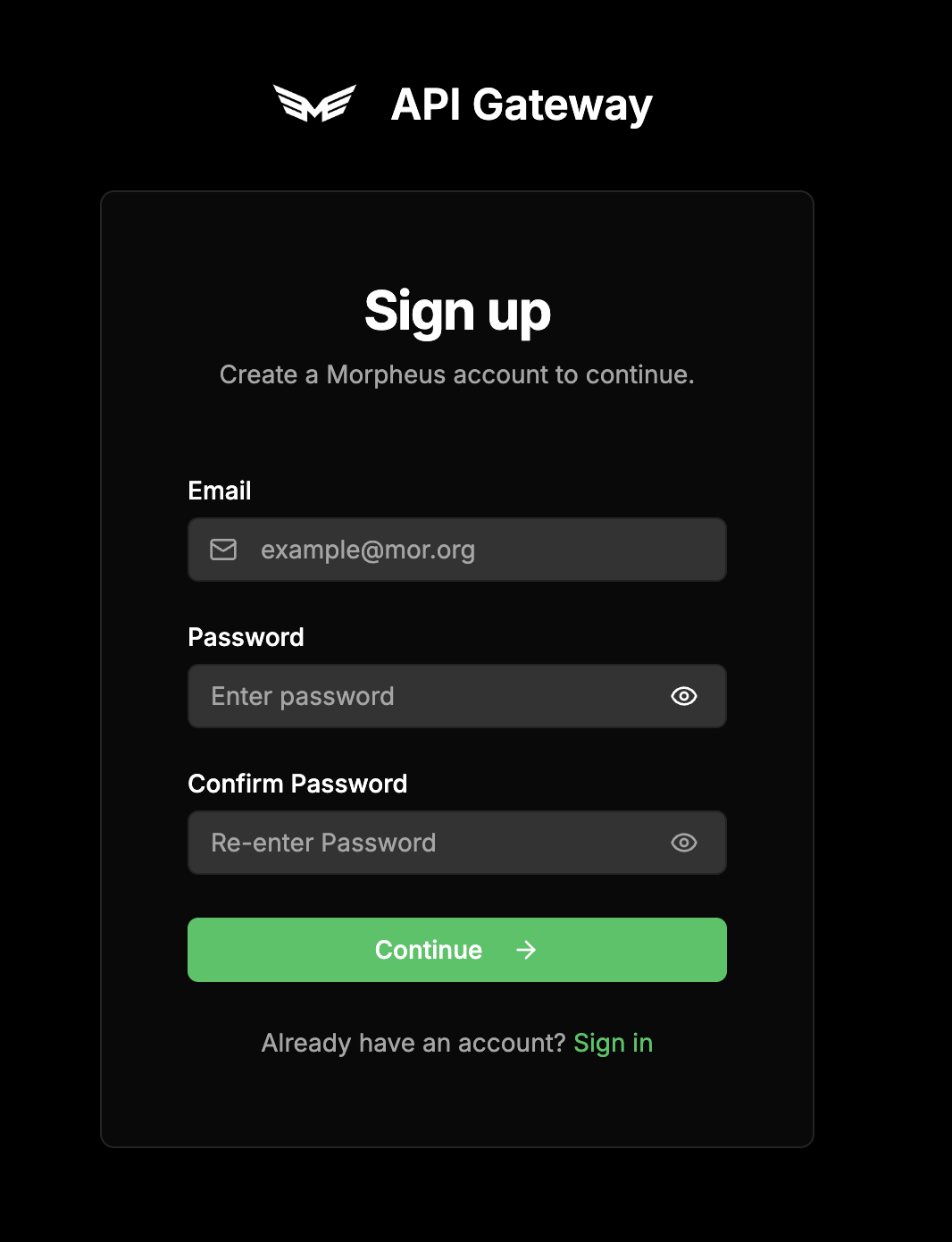
Visit [app.mor.org](https://app.mor.org) to get started. Click **Sign Up** and create an account with your email address or **Login** to your account.
***
## Step 2: Access the Dashboard
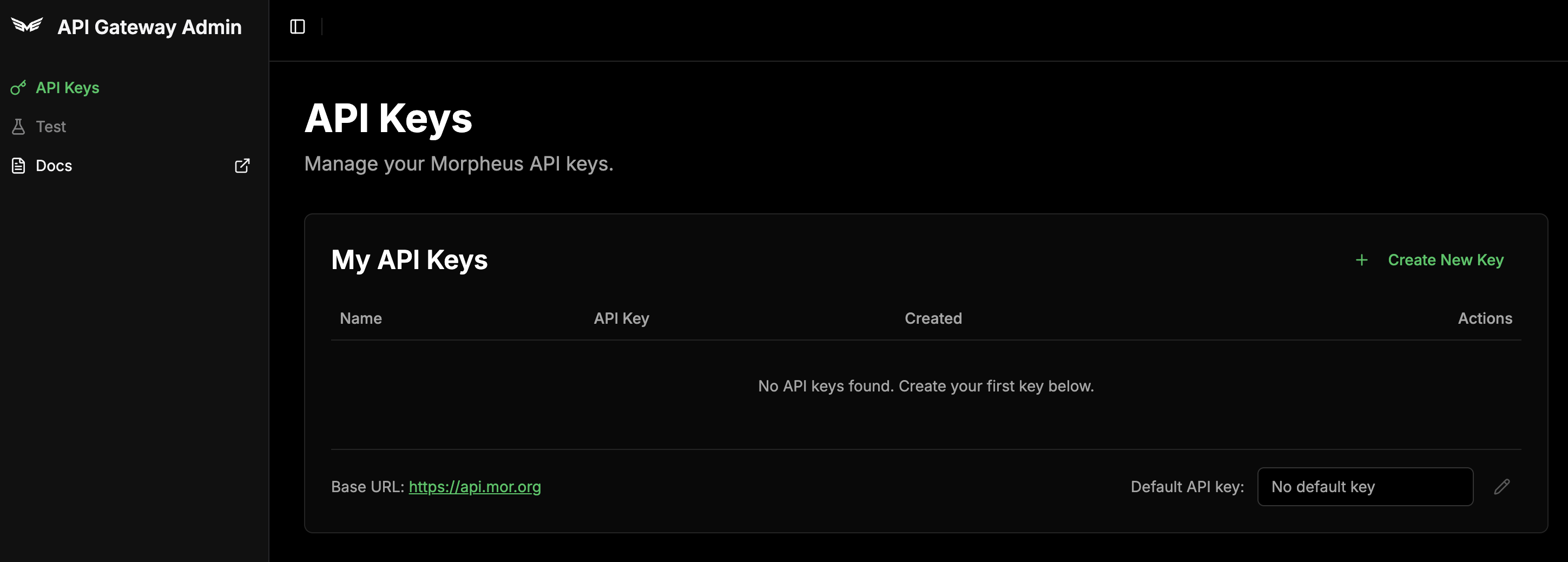
After logging in, you will be brought to your API Key dashboard.
***
## Step 3: Account Settings
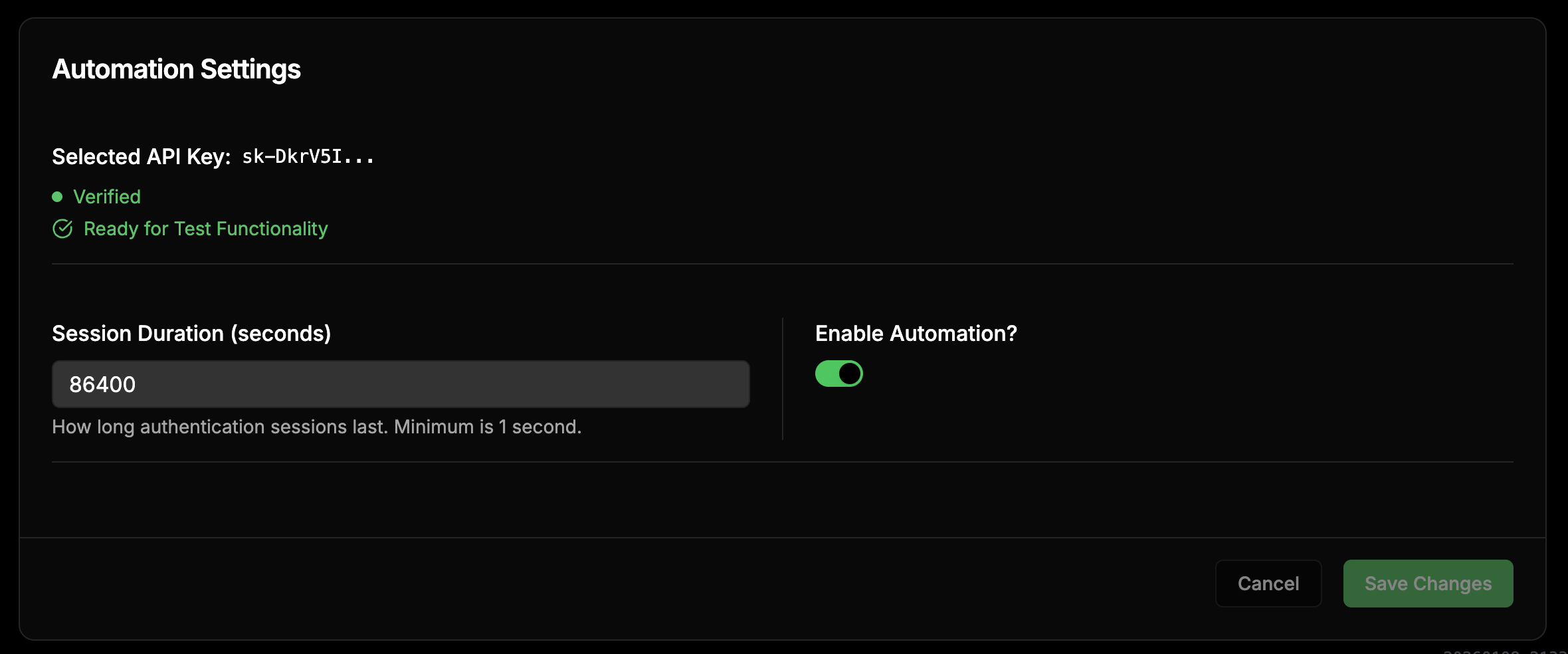
Click your username and then the **Account** button to access your account settings. Ensure automation is enabled for your account to continue.
***
## Step 4: Create an API Key
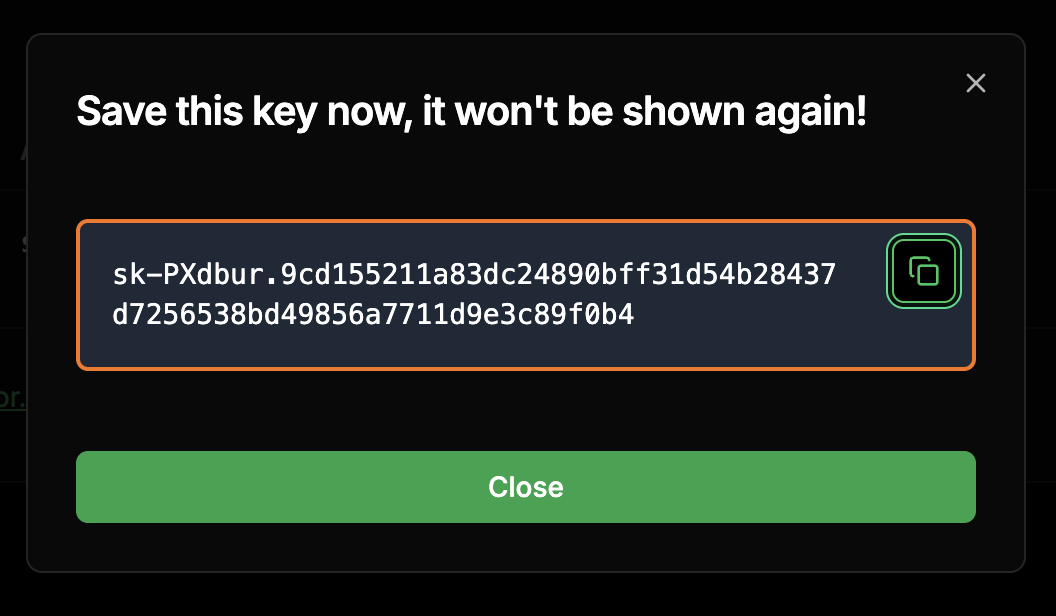
Go back to the main dashboard and click **Create New Key** and then name your API key. Upon creation, the key will be generated.
**Copy your API key immediately!** It will only be shown once. Store it somewhere secure.
***
## You're Ready!
You now have everything you need to start using the Morpheus Inference API:
**Base URL:** `https://api.mor.org/api/v1`
**API Key:** The key you just created (starts with `sk-`)
## Next Steps
Make your first API request with code examples.
See all available models and their capabilities.
Use Morpheus with Cursor IDE.
Integrate with Python using the OpenAI SDK.
 ***
## Step 3: Account Settings
Click your username and then the **Account** button to access your account settings. Ensure automation is enabled for your account to continue.
***
## Step 3: Account Settings
Click your username and then the **Account** button to access your account settings. Ensure automation is enabled for your account to continue.
 ***
## Step 4: Create an API Key
Go back to the main dashboard and click **Create New Key** and then name your API key. Upon creation, the key will be generated.
***
## Step 4: Create an API Key
Go back to the main dashboard and click **Create New Key** and then name your API key. Upon creation, the key will be generated.
 ***
## You're Ready!
You now have everything you need to start using the Morpheus Inference API:
***
## You're Ready!
You now have everything you need to start using the Morpheus Inference API: